
What it does
Record anywhere you already ask
Kiosk tablet, QR code, email link, or your website embed. Video or voice, sixty seconds max, no app to install.
Transcribed and captioned
Every clip gets a transcript and a suggested caption. Unhappy guests are asked what went wrong instead — that clip goes to your inbox, never to the wall.
You approve before anything shows
Consent and a display name are captured at recording time. Nothing is public until you say so.
Wall, widget, story
Approved clips drop into your Feedback Wall and web widget, or become a story-ready post with your branding through Spotlight.
How it works
-
1
Add the Video / voice recorder question to a survey, set the rating that triggers the testimonial ask, and write the thank-you gift.
-
2
Guests record on the kiosk, from a QR code, or from the link you email them — or ask directly with Request a testimonial.
-
3
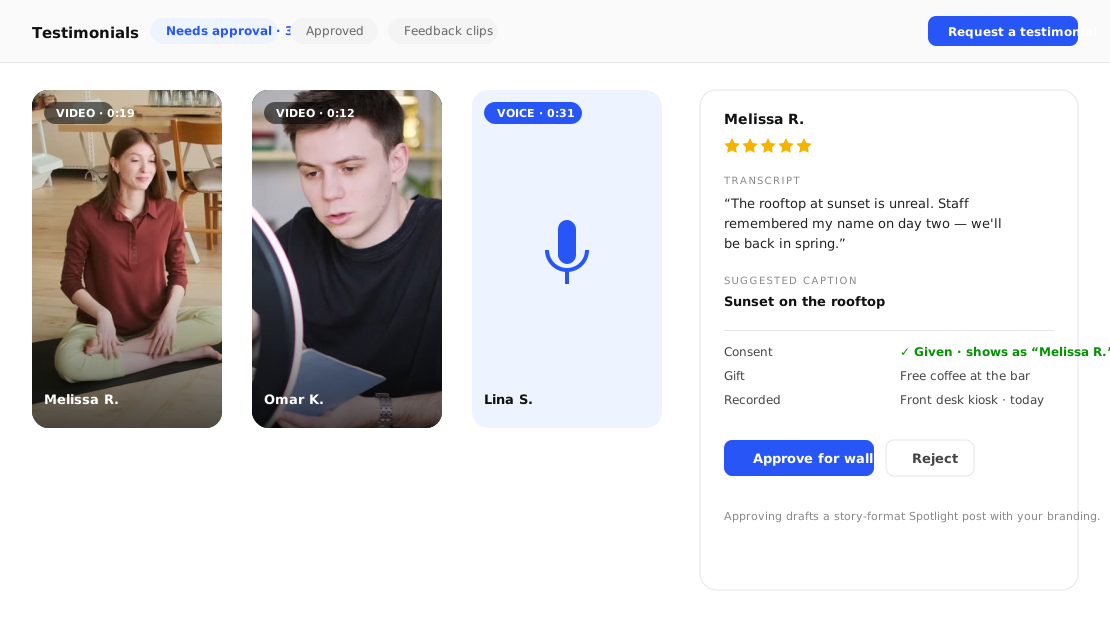
Approve the good ones under Testimonials; they appear on your wall, widget, and as a Spotlight post.
Inside the product
What it looks like in FeedbackRobot
Where it earns its keep
Hotels
Checkout kiosk at the front desk
A tablet on the counter asks for a rating; a five-star guest is invited to say why on camera while the stay is still fresh.
Restaurants & bars
QR on the receipt
The bill carries a QR; the recorder asks “What did you order, and would you come back?” before the table is cleared.
Gyms & studios
Right after class
A link in the post-class text; members record a twenty-second clip on the mat while the endorphins are doing the talking.
Salons & spas
At the mirror, before they leave
The result is on their face; the stylist’s tablet asks for it on camera, with the name of the person who did it.
E-commerce
Post-delivery email
Three days after delivery, the survey asks for the unboxing on video — the clip becomes the product page’s social proof.
Events & weddings
The morning after
Organiser and guests get one link; the best thirty seconds go on the venue’s wall and Instagram before the next enquiry lands.
One question, two intents
The recorder is a survey question like any other, placed after your rating question. What it asks depends on the rating:
- Rated at or above your threshold (four stars by default): “Say it on camera?” — with the thank-you gift under the record button, a consent checkbox and a display name.
- Rated below it: “Tell us what went wrong.” No gift, no consent — the clip goes straight to your inbox as private feedback, transcribed, next to the response it came with.
Everyone is asked the same questions. The only difference is what happens with the answer, which keeps you on the right side of review-platform rules about selective solicitation.
Where it works
- Kiosks. Open the survey with
?kiosk=1on a tablet at the desk: the screen stays awake, the recorder goes full-screen, and the page resets for the next guest twenty seconds after they finish. - QR codes on room doors, table tents and receipts — the guest records on their own phone.
- Email and SMS links, including the one-click Request a testimonial from your dashboard, which sends a short survey built for exactly this.
- Your website, through the survey embed.
The kiosk at the counter
The fastest way to collect is a tablet at the desk or the till. Open your testimonial page with ?kiosk=1: it runs full screen, keeps the screen awake, and resets itself twenty seconds after each guest finishes. Set it up once from Collect in your dashboard — the kiosk link and a printable QR are right there — and try it on your own webcam first so you know what a guest sees.
From clip to social proof
Every recording is transcribed and captioned automatically, then waits under Testimonials for your approval. Approve it and it is ready for Spotlight: a video tile on your Feedback Wall, a card in the web widget, or a story-format post with your logo, stars and caption over the clip.
The rules we follow so you don’t have to
- The gift is for recording, never for posting a review anywhere.
- Consent is captured per clip, with the exact wording the guest saw.
- Public testimonials that were rewarded carry a small “guest received a thank-you gift” label.
- Nothing is published without a human approving it.
Frequently asked questions
Do guests need an app to record?
No. Recording happens in the browser, on a phone, tablet or laptop — the same survey page they already use.
Can I reward guests for recording?
Yes. You write the thank-you gift shown under the record button. The gift is for the recording itself — never for posting a public review — and testimonials shown publicly carry a small disclosure that a gift was offered.
What happens to negative recordings?
Guests who rate below your threshold are asked what went wrong instead. Their clip is transcribed and lands in your inbox as private feedback — and opens a recovery conversation so the AI can make it right; it is never published.
Who owns the recordings and who consented?
Each clip stores the consent text the guest agreed to, when, and the display name they chose. Only approved, consented testimonials can be shown anywhere.
Which plans include it?
Every plan has a monthly recording allowance: Free 3 (enough to try it on yourself and a couple of guests), Pro 50, Advanced 200, Enterprise 1,000 — see pricing.
Setup takes 3 minutes. Your agent handles the rest.
Get Started — 25 Free AI Actions