
What it does
Smart triggers
Automatically send surveys after key actions like purchases, cancellations, or support chats.
Team notifications
Instantly alert the right person when new feedback comes in or an issue is detected.
Conditional actions
Define logic once based on sentiment — FeedbackRobot handles what happens next, from follow-ups to resolutions.
Auto follow-ups
Schedule personalized reminders and close feedback loops automatically.
How it works
-
1
Set your rules — define the triggers and conditions that matter.
-
2
Trigger smart actions the moment those conditions are met.
-
3
Track and improve as automations run in the background.
Inside the product
What it looks like in FeedbackRobot
What can start an automation
Automations begin with a trigger. FeedbackRobot supports:
- A new customer is added — however they arrive, manually or by import
- A survey response comes in — the most common starting point for follow-up logic
- Shopify — an order is created or fulfilled
- Stripe — a charge succeeds, an invoice is paid, a subscription starts or cancels
- Cin7 — a sale or retail order is completed
- Salesforce — a deal closes, or a guest checks out
- Your own systems — an API call or webhook, for anything not on this list
The webhook trigger is the escape hatch. If your booking system, PMS or CRM can send an HTTP request, it can start a FeedbackRobot workflow, which covers the long tail of tools no integration list will ever fully include.
What an automation can do
Each step in a workflow is one action:
- Send a survey — over email, SMS or WhatsApp
- Send an email or send an SMS — for reminders and follow-ups that aren’t surveys
- Notify the team — an internal alert when something needs attention
- Draft a review reply — an AI-written reply prepared for approval, not posted automatically
- Escalate to the team inbox — push the item into the resolutions queue, where the AI can make it right with an offer you have authorised
- Update Salesforce — write back to a contact or any Salesforce object
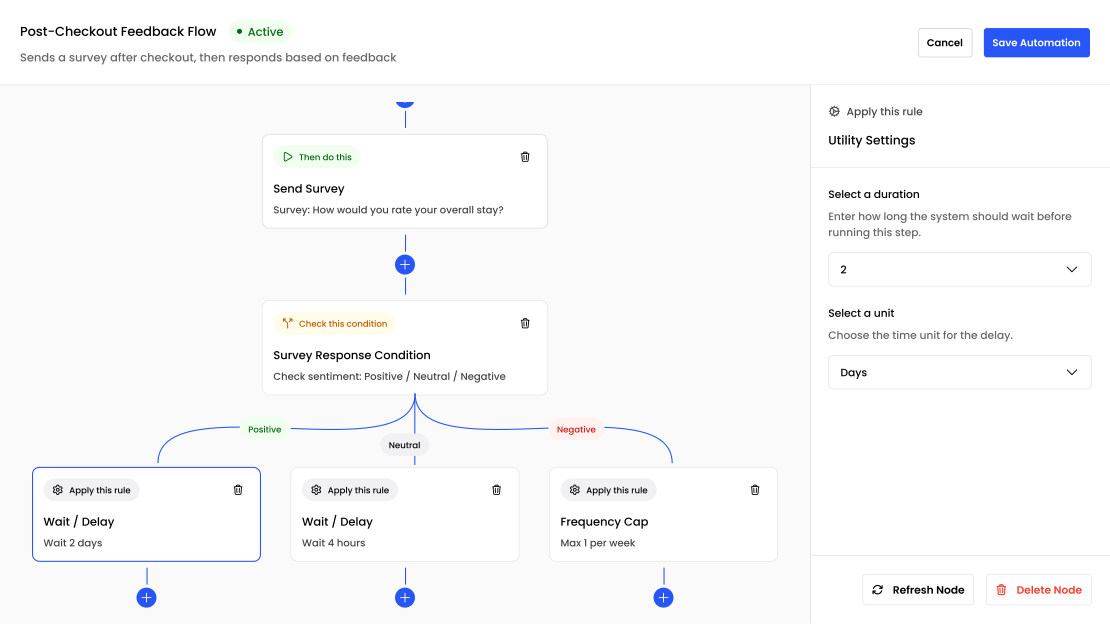
Steps run in sequence, and later steps can use data from earlier ones, so a workflow can branch on what a customer actually said rather than just on whether they replied.
Building one
The builder is visual: you add a trigger, add steps beneath it, and configure each one in a side panel. There is no scripting, and nothing to deploy — a workflow is live once you turn it on.
If you would rather not start from scratch, the templates library has pre-built workflows for the common cases: post-purchase feedback, post-stay surveys, review request sequences, detractor follow-up. You can browse the full set on our automation library.
Seeing what actually ran
Every workflow keeps an event history — which customer it fired for, which steps ran, and what each one did. This matters more than it sounds. The failure mode with automation isn’t a workflow that breaks loudly; it’s one that quietly stops matching anything and sends nothing for a month. The event history is how you notice.
Where to start
The highest-return automation for most businesses is the simplest one: send a survey a fixed period after the transaction, then escalate anything negative to a human the same day. That single flow covers most of the value. Branching logic, multi-step nurture sequences and CRM write-back are worth adding once the basic loop is running reliably.
Frequently asked questions
What is Automations?
Automations lets you trigger actions, send surveys, notify teams, and close feedback loops automatically — no manual effort needed.
What can trigger an automation?
Smart triggers can automatically send surveys after key actions like purchases, cancellations, or support chats.
Does Automations notify my team?
Yes — it instantly alerts the right person when new feedback comes in or an issue is detected.
Can I set follow-up reminders automatically?
Yes, Automations can schedule personalized follow-up reminders and close feedback loops without manual work.
Setup takes 3 minutes. Your agent handles the rest.
Get Started — 25 Free AI Actions